Freshdesk Installation Guide
The Skybox Integrated eXperience (SiX) for Freshdesk seamlessly embeds the NICE CXone agent experience directly in Freshdesk so agents can work in one interface.
With SiX, teams can manage voice and digital interactions using the same CXone APIs and core agent capabilities, while reducing context switching and improving adoption.
Why SiX for Freshdesk
- Embedded CXone agent experience inside Freshdesk
- Supports voice and digital interaction handling
- Click-to-call and integrated softphone support
- Automated call logging and disposition workflows
- Screen pops and customizable event-driven behaviors
- Team visibility features and queue/skill awareness
Source: Skybox SiX for Freshdesk
Installation Steps
1. Search in the Freshdesk Marketplace
Search for the SiX Agent in the Freshdesk Marketplace. Link
Click on the Install button to install the app.
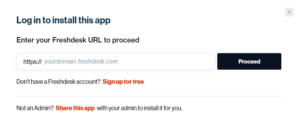
2. Enter Freshdesk Instance URL
Enter your Freshdesk instance URL during setup.
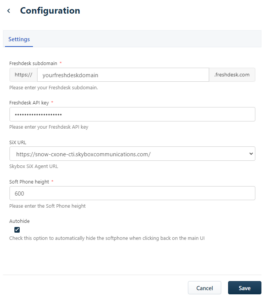
3. Configure SiX Application
Add your App Key and your Freshdesk Instance URL in the application settings.
4. Complete Registration and Assign Licenses
To use SiX, your CXone instance must be registered in the License Manager, and each user must have an active license assigned.
License Manager
For license assignment steps, see License Manager Documentation.