Receiving a Commitment
When a scheduled commitment is triggered, it appears as an active contact card in the SiX Agent interface. You must choose to handle, reschedule, or remove the commitment.
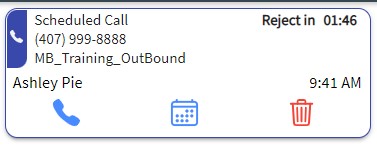
Handling Options
1. Call a Commitment
Click the CALL button. The system will automatically dial the phone number associated with the commitment.
2. Reschedule a Commitment
Click the RESCHEDULE button. This allows you to modify the Date, Time, and Time Zone for the follow-up. Click SAVE to update the commitment and return to the Home screen.
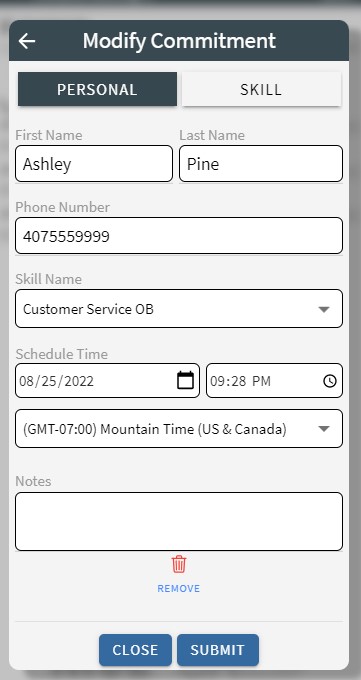
3. Delete a Commitment
Click the DELETE button on the incoming commitment card to remove it from your queue. You can also delete commitments by editing them within the Coming Up section of the Home view.
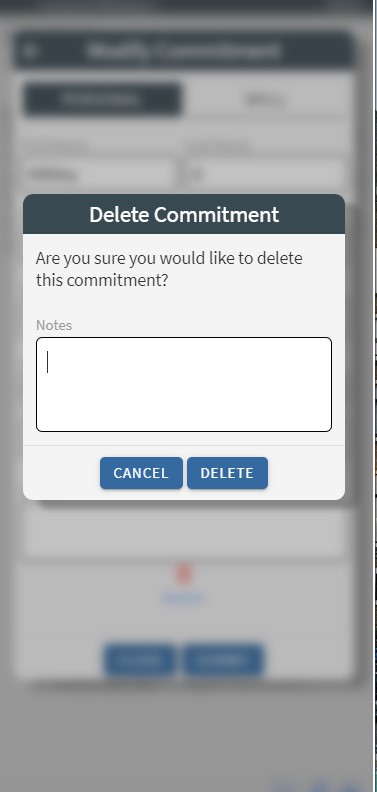
Required Notes
Depending on your Business Unit's configuration, you may be required to enter notes before rescheduling or deleting a commitment.