Participating in a Chat
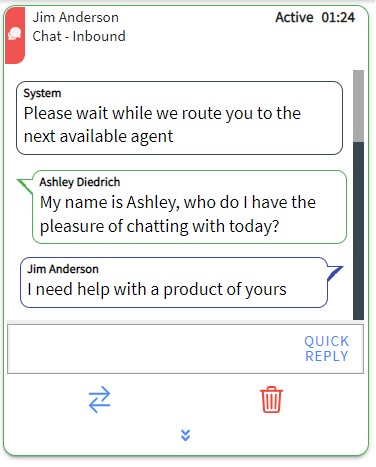
Active chats appear in the SiX Agent interface as contact cards. You can manage multiple chats simultaneously.
Steps
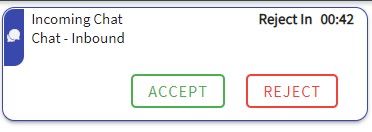
1. Click ACCEPT
An agent has 45 seconds to accept an incoming chat request. If not accepted within this time, or if you click REJECT, the chat is returned to the skill queue, and your state is changed to Refused.
2. Chat Interface
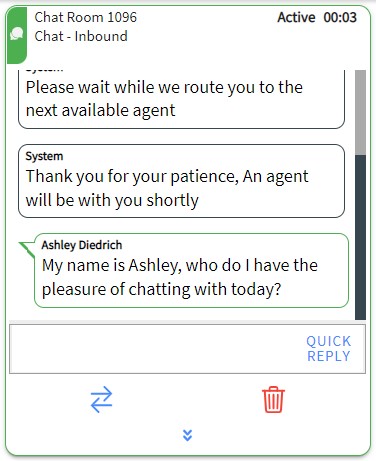
- Active Chats: Indicated by a green header.
- Interrupted Chats: Indicated by a black header.
- Messages: Agent messages are green bubbles with your initial. Customer messages are blue bubbles.
3. Handle Multiple Chats
You can only have one active chat at a time. Click on any interrupted chat card to activate it; other chats will be automatically marked as interrupted.
4. Send Message
Type your message in the text field and click SEND to transmit it to the customer.
Unresponsive Alert
If there is no activity in a chat for one minute, the message icon in the top-left will flash red to alert you.