Parking an Email
The Email Parking feature allows you to temporarily set aside one or more emails to handle other incoming contacts without affecting your post-contact work metrics (like ACW).
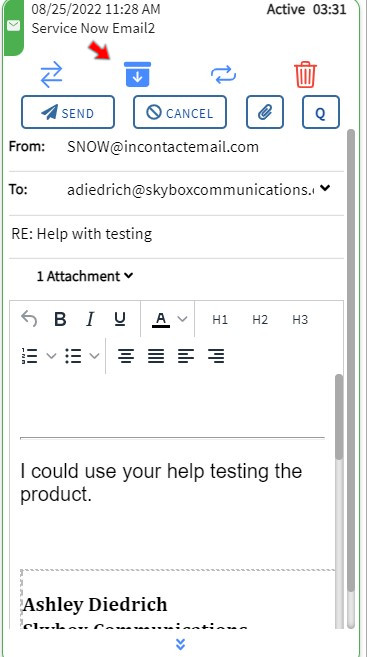
Steps
1. Click PARK
Click the PARK button on the active email contact card. The email will be minimized and displayed on the Home tab with a blue header.
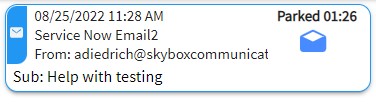
2. Click UNPARK
To resume working on a parked email, click the Unpark icon on the minimized card.
- If you are busy: The unparked email moves to your Personal Queue with high priority.
- If you are available: The email immediately opens in the active email window.
Priority
Unparked emails are given higher priority than other contacts in your Personal Queue, ensuring you can return to them as soon as you are free.