Commitments
If you need to follow up with a contact at a later time, you can schedule a Commitment. Commitments appear on your schedule and provide reminders when it's time to reach out.
Adding a New Commitment
1. Click Add Commitment
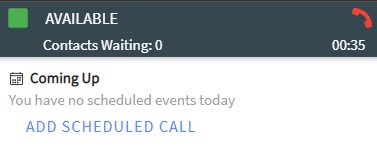
Click the blue PLUS icon or the ADD SCHEDULED CALL button in the "Coming Up" section of the SiX Agent.
2. Fill in Required Fields
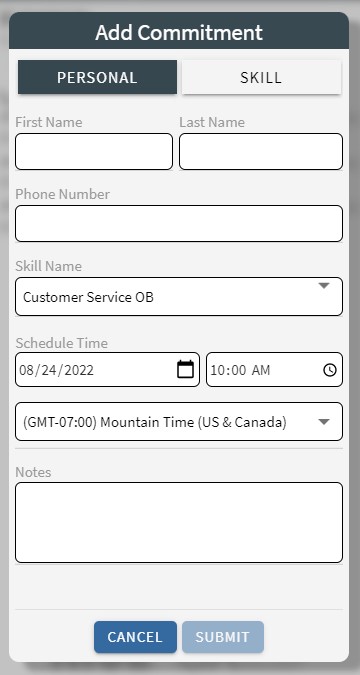
Before saving, you must provide valid information for: - First Name - Last Name - Phone Number - Date - Time
You can also include optional notes for context when the commitment is triggered.
3. Select Commitment Type
Choose whether the commitment is for you personally or should be routed to any available agent in a specific skill: - PERSONAL: Assigns the follow-up directly to you. - SKILL: Routes the follow-up to the next available agent in the selected skill.
4. Click SUBMIT
The commitment is saved and will appear in your "Coming Up" list.