SiX License Console
The Skybox integrated eXperience (SiX) License Console is a web-based application that allows administrators to manage their organization's licenses, configure system settings, and assign access to agents for the SiX Agent Interface.
Access the SiX License Console
The License Console is available at: Skybox Agent License Console
Interface Elements
The main screen of the License Console provides a snapshot of your current licensing status and administrative controls.
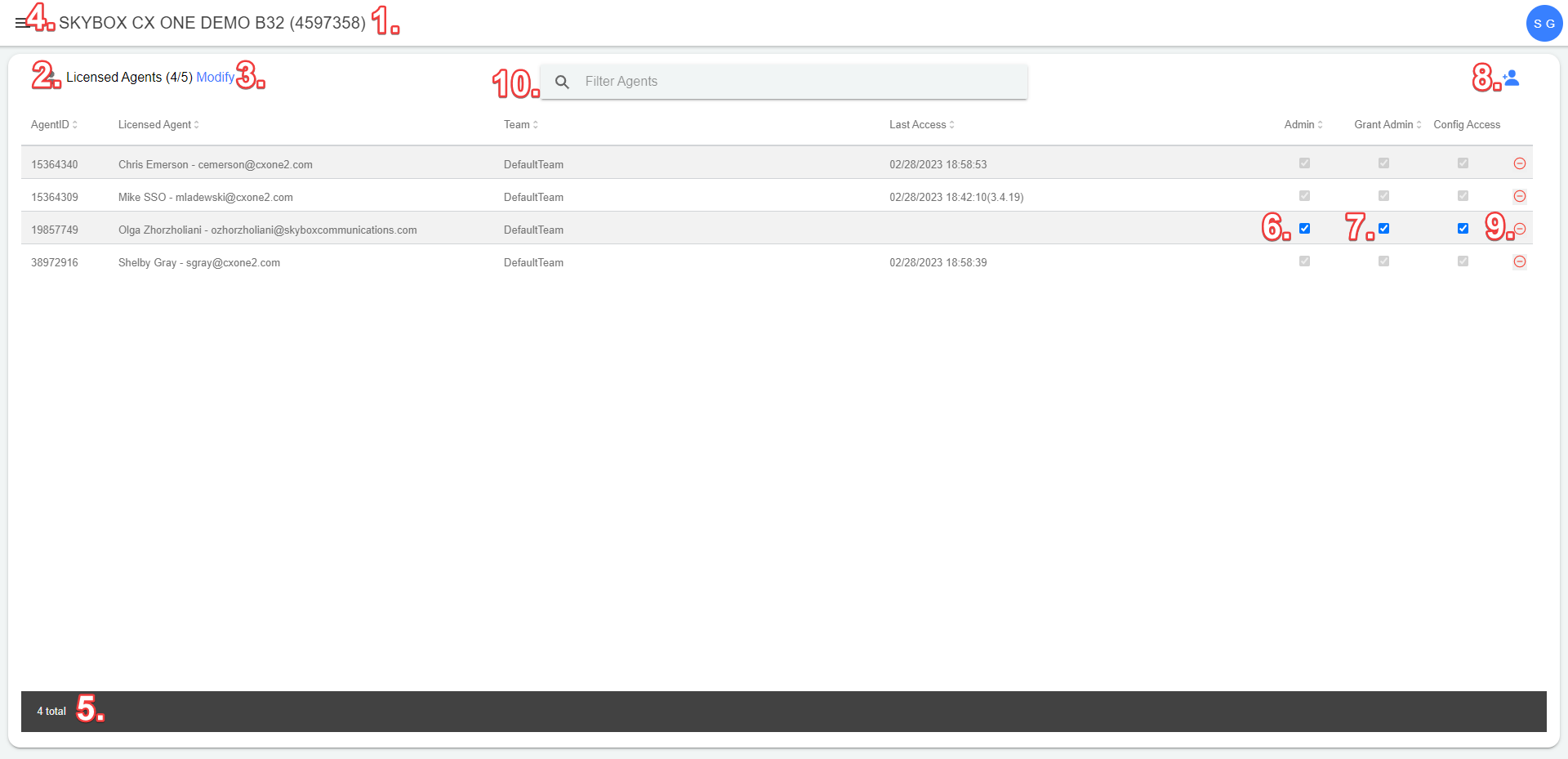
| Element | Details |
|---|---|
| Business Unit (1) | The Business Unit (BU) number and name attached to the license. |
| License Count (2) | Total allowed active users for this Business Unit. |
| Modify Total Licenses Button (3) | Launches a screen to adjust the total number of licenses for the Business Unit. |
| Log Out Button (4) | Logs the user out of the License Application. |
| Active License Members (5) | A list of all users that have been assigned a license and have access to the SiX Agent. |
| Admin Flag (6) | Users with this flag checked have permission to log in to the License Application. |
| Can Grant Flag (7) | Users with this flag checked have permission to grant other users Admin privileges. |
| Add License Users Button (8) | Launches the Add License Users screen to provision new agents. |
Getting Started
To begin using the License Console, you must first register your CXone Business Unit and assign licenses to your agents.
- Register for 5 Free Licenses: Start with 5 complimentary licenses to test the integration.
- Log In Options: Multiple ways to access the console using your CXone credentials.
- Managing Licenses: How to add, remove, and manage agent permissions.
- Modifying License Count: Adjusting your total license pool (requires BU to be LIVE).
- Configuration Options: Personalize the SiX experience with advanced system settings.