Logging In and Out
SiX can be launched standalone using the links below, or from ServiceNow by clicking the icon on the top menu bar.
Standalone Login Options
License and Configuration Login
Steps
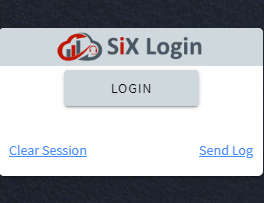
1. Launch SiX
SiX can be launched either standalone from the LOGIN menu on this website by selecting Skybox Agent Experience, or from ServiceNow by clicking the icon on the top menu bar.
2. Click LOGIN
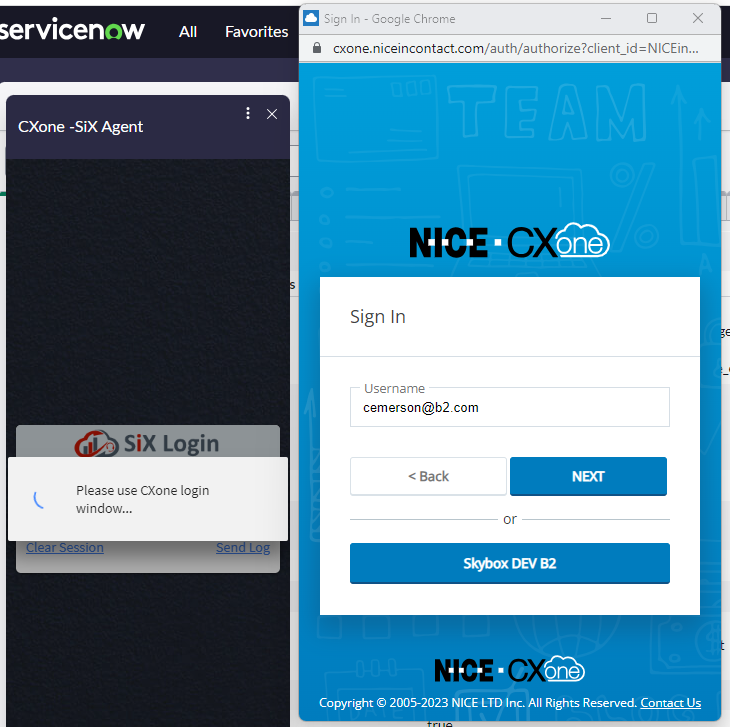
3. Enter Credentials
The CXone login screen will pop up. Enter your Contact Center credentials. Checking the Remember Me box will remember your Username. If you forgot your password, click the Forgot Your Password? link to bring up your Contact Center's password reset.
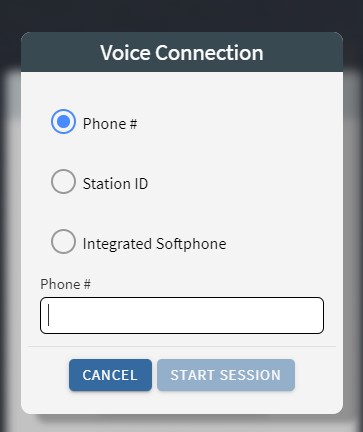
4. Enter Session Information
After CXone successfully authenticates the user, the Voice Connection pop up will appear. Enter a valid phone number with no spaces, a Station ID, or Integrated Softphone to specify how the agent will be making and receiving calls.
5. Click CONNECT
6. To Log Out — Select LOG OUT From The Status Drop Down
Important
You must use the agent state bar and select Log Out to successfully log out of SiX. Simply closing the browser window does not log you out of the contact center platform.