Click to Call
The Skybox integrated eXperience (SiX) provides two easy ways to add Click to Call functionality to ServiceNow forms.
Agent Workspace
The following solutions use ServiceNow UI Macros and UI Actions. Agent Workspace does not support UI Macros outside of the built-in click-to-call on the Contact form.
Method 1: Add to Reference Fields
A phone button can be added next to a reference field (e.g., Caller or Contact) on any form.
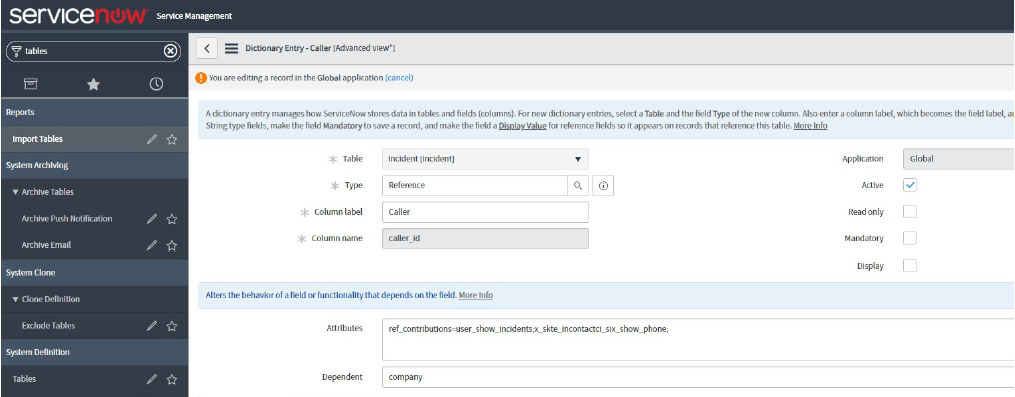
- Navigate to Table: Go to System Definition > Tables.
- Select Field: Click on the column label of the field where you want to add the button. The field must be of type Reference.
- Modify Attributes: Add the following UI Macro to the Attributes property. If there is already a value, separate it with a semicolon:
ref_contributions=x_skte_incontactci_six_show_phone;
Method 2: Add to a Form
You can add a button to the top of any form that contains one or more phone number fields.
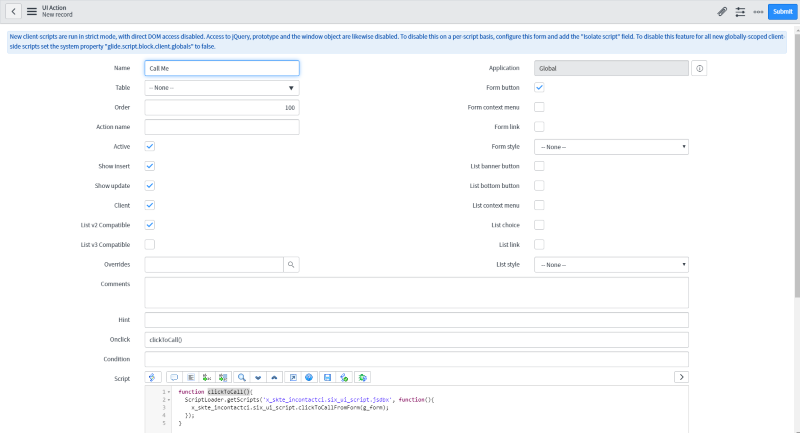
- Create UI Action: Go to System Definition > UI Actions and click New.
- Fill Properties:
- Name: Desired button name (e.g., "Call Customer")
- Table: The table attached to the form (e.g.,
sys_userorincident) - Form Button: Checked
- Client: Checked
- Onclick:
clickToCall() - Script:
- Submit: Save and refresh your browser.
