Initiating Outbound Calls
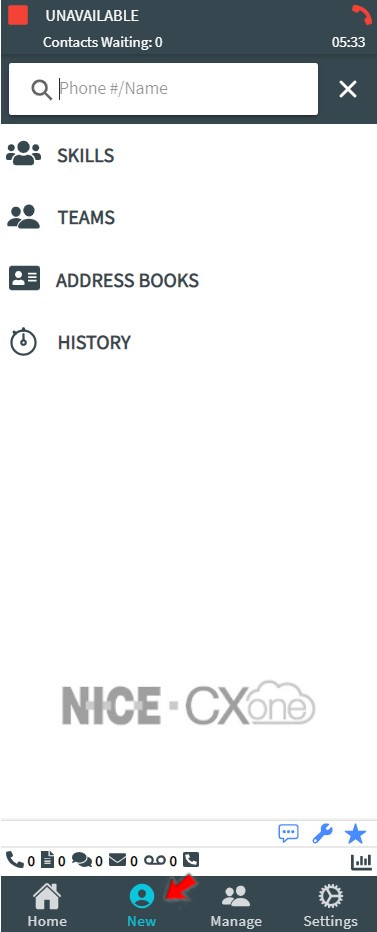
To initiate an outbound call or email, click the NEW button at the bottom of the SiX Agent interface. This opens a search and navigation panel with several ways to find your target.
Navigation Tabs
- Search Bar: Type a phone number, email, agent name, or skill.
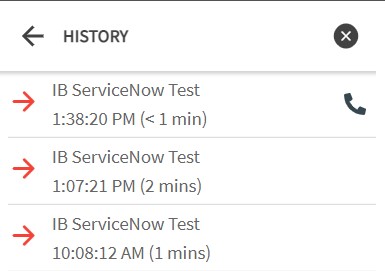
- History: Displays your most recent contacts over the last 48 hours.
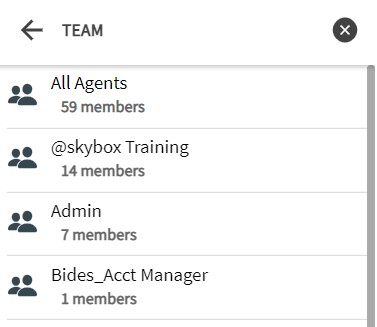
- Teams: Lists all agents organized by their teams in the business unit.
- Skills: Lists all skills and the count of available/unavailable agents assigned to them.
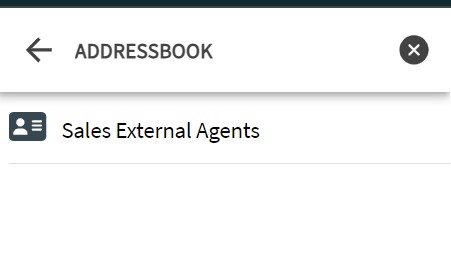
- Address Books: Lists all shared and personal address books.
Initiating a Call
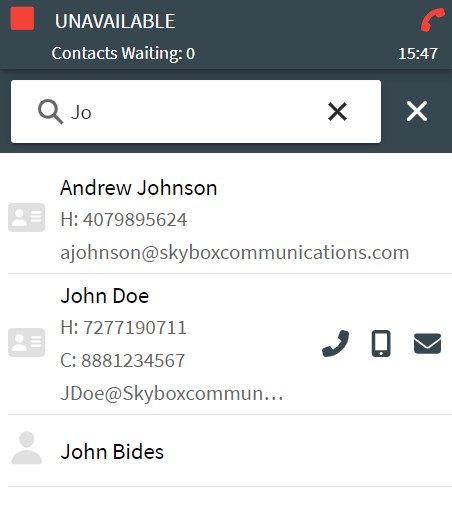
1. From the Search Bar
Begin typing in the search box. Results will display immediately. Hover over a result and click the phone icon to call or the email icon to start an email.
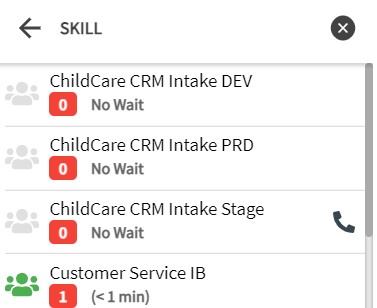
2. From the Skills Tab
Select the Skills tab to see available skills. The left box shows the agent count, and the right box shows the queue count. Hover over a skill to see the phone icon, or click the skill to see specific agents.
3. From the Teams Tab
Select the Teams tab and drill down to find a specific agent. Hover over the agent's name and click the phone icon.
4. From the Address Book
Browse your address books to find a contact. Hover and click the phone or email icon.
5. From History
Select the History tab to quickly redial recent contacts.
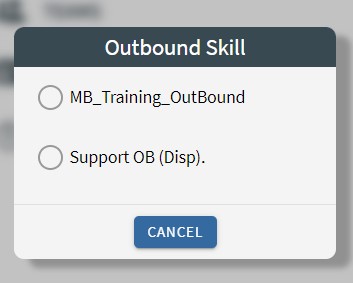
Selecting an Outbound Skill
All outbound calls require an outbound skill to be attached for reporting and routing. If you have multiple outbound skills assigned, you will be prompted to select one before the call is placed.