SiX Agent Interface
The Skybox Integrated eXperience (SiX) is a contact-handling web application that enables you to interact with contacts using phone calls, voicemail, email, chat, and work items. SiX also supports the simultaneous use of multiple channels.
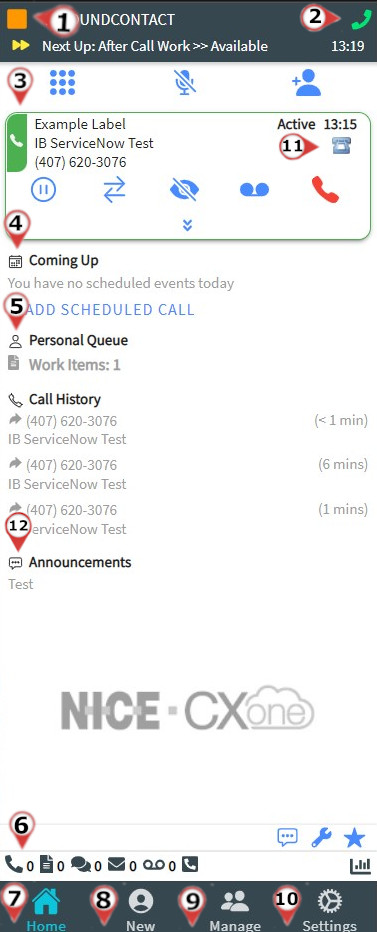
As you handle an interaction, SiX offers several tools to enhance your experience. You can transfer interactions to other agents or skills, conference with the contact and another agent, place the contact on hold, disposition and tag the interaction to categorize it, and create reminders to reach the contact again at a later time. You can use the address book to quickly place calls, generally within your own organization.
Administrator Configuration
The channels and features available in your instance of SiX depend on how your administrator has configured it. Some of the features in this guide may not be available for you.
Interface Elements
| Element | Details |
|---|---|
| Agent State (1) | Your current state, next state, and next next state. Available means you are ready to take on new work; Unavailable means you are busy or away and unable to take on new work; Working means you are actively handling contacts. Click the agent state bar to change your state or to log out. |
| Agent Leg (2) | Your connection to the contact center platform. You must be connected to the agent leg to handle voice contacts. |
| Contact Card (3) | Contact Cards appear for Phone, Email, Chat, Voicemail, and Workitem contacts delivered in the system. |
| Coming Up (4) | A list of upcoming call commitments in your schedule. Clicking the blue plus allows entry of new commitments. |
| Personal Queue (5) | Interactions that you are not actively handling that are assigned to you. These have usually been transferred to you specifically by another agent. |
| Queue (6) | The number of contacts in the queue that could potentially be routed to you. This includes:
|
| Home (7) | Change view to Home view to connect to inbound and outbound contacts. |
| New (8) | Allows you to place calls or start outbound emails. Opens your address book, recent history, and a manual entry field. Once a contact is selected, a skill must also be selected to initiate the call or email. |
| Messages (9) | Displays all messages from your supervisor or administrator. Unread messages are indicated by a blue counter icon. |
| Settings (10) | Opens a pop-over menu with troubleshooting info, feedback options, personal settings, and a link to online help. |
| Contact Indicator (11) | Custom contact indicators can be created for contacts to perform custom functionality such as popping a URL. |